/ Technologies




/
article
/
Almost every ERP implementation brings the need to schedule and run operations in batch mode. Examples include regular item reservation or invoicing of completed sales. Batch processing is also useful for end users to launch one-off, compute-intensive operations such as generating a report or running a period-end closing.
Microsoft Dynamics AX has supported batch processing since its early versions. Each release introduced important changes—while Axapta 3.0 processed batch jobs using a dedicated client, AX 2009 introduced server-side processing. AX 2012 then delivered a major performance boost by moving batch processing into the .NET framework world.
At Blue Dynamic we have extensive experience running batch jobs across environments and customers. Below are five valuable tips and lessons learned from that work. We also reference the Blue Dynamic Batch package with application enhancements we developed to solve batch-operation issues.
Every batch consists of a header (Batch job) and one or more lines.
This is not a tip yet, but we need clear terminology. Every batch consists of a header (Batch job) and one or more lines (Batch task). The Czech translation is not ideal since “úloha/úkol” sound identical. English is clearer—Batch jobs and Batch tasks—so we stick to it below.
It is important to know what Batch jobs and Batch tasks are for and how Microsoft Dynamics AX treats them. Batch jobs define the behavior of the batch as a whole—current state, schedule with recurrences, next run date and time. Batch tasks define the concrete steps—which actions to execute and with what parameters (such as input filters). You can define dependencies among tasks to enforce ordering or enable parallel processing.
If we run five batches in the Dynamics AX solution, names barely matter. Over time complexity grows. Some batches must run only during the day, others only at night. Some run every few minutes in “changes only” mode plus a daily “process all” safety run (e.g., retail master data distribution). Some are so heavy that we spread processing over slices of data (e.g., de-duplicating a million customers by last-name ranges). Soon the active list spans several screens.
Impose order early. We use multi-level prefixes in names, for example:
A batch could be named: N-FIN-Update balances for dimension set Ucet.
Benefits are obvious—sorting by name groups related jobs, and you can distinguish well-configured scheduled jobs from ad-hoc user runs. The name also conveys subject matter and schedule.
Suppose a Batch job has 30 Batch tasks with complex filters and dependencies. A new task must be added. Peter, who authored it, is on vacation, so Pavel is tasked. He discovers he needs admin rights and the header must be in status Withhold. He still cannot finish—creating a new Batch task yields “Cannot create a record in Batch transactions (Batch). The corresponding AOS validation failed.” The same happens when changing dependencies.
Owner has full control. A regular user has none. An admin who is not the owner may pause or reschedule, but cannot change business semantics—no adding tasks, changing task parameters (filters), or class. This preserves auditability—Pavel must not make semantic changes under Peter’s name. Pavel must either reach Peter or recreate the job as his own.
To preserve audit while allowing time off, our Blue Dynamic Batch adds “Batch job owner.” It mirrors “Created by” at creation, but can be changed via “Take ownership.”
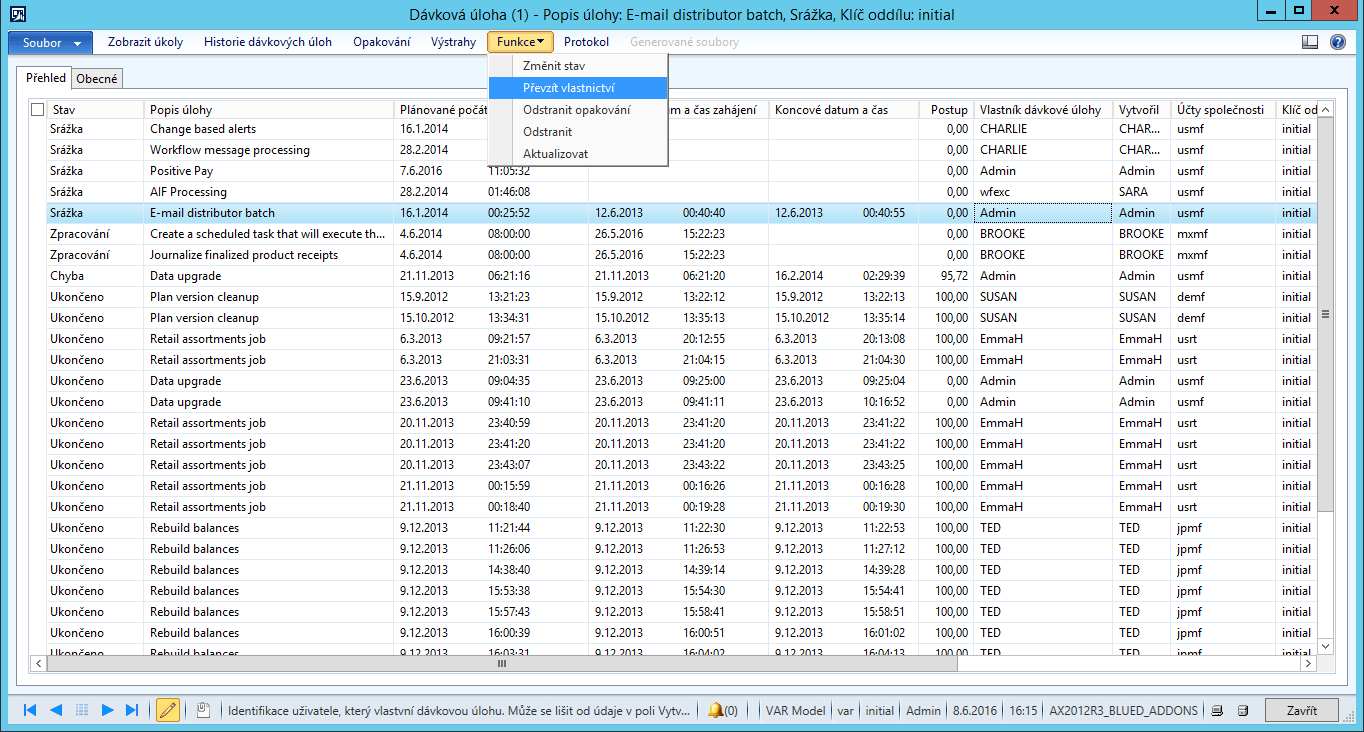
After taking ownership, Pavel changes the job under his identity. The owner value is written also to history, so you can see when ownership changed.
They are not for organizing Batch jobs. A batch group is stored on Batch tasks, not on the job. For organization use naming discipline from Tip 1.
What are they for? Mainly to route different Batch tasks to different AOS servers. With one AOS, a single group is fine (AX creates a blank-named default). Splitting helps for compute-heavy tasks or tasks needing a special resource on certain AOS nodes.
We also use groups to avoid collisions. Retail jobs “Post inventory” every 10 minutes and “Post statement” nightly can clash. If we could block “Post inventory” after a certain hour, the collision disappears.
Standard AX solution: multiple AOS nodes. Create groups DAY and NIGHT. Assign “Post inventory” to DAY and “Post statement” to NIGHT. Run one AOS 08:00–22:00 for DAY, another 22:15–07:45 for NIGHT.
If extra AOS is not possible, our Blue Dynamic Batch adds a schedule at the batch-group level.
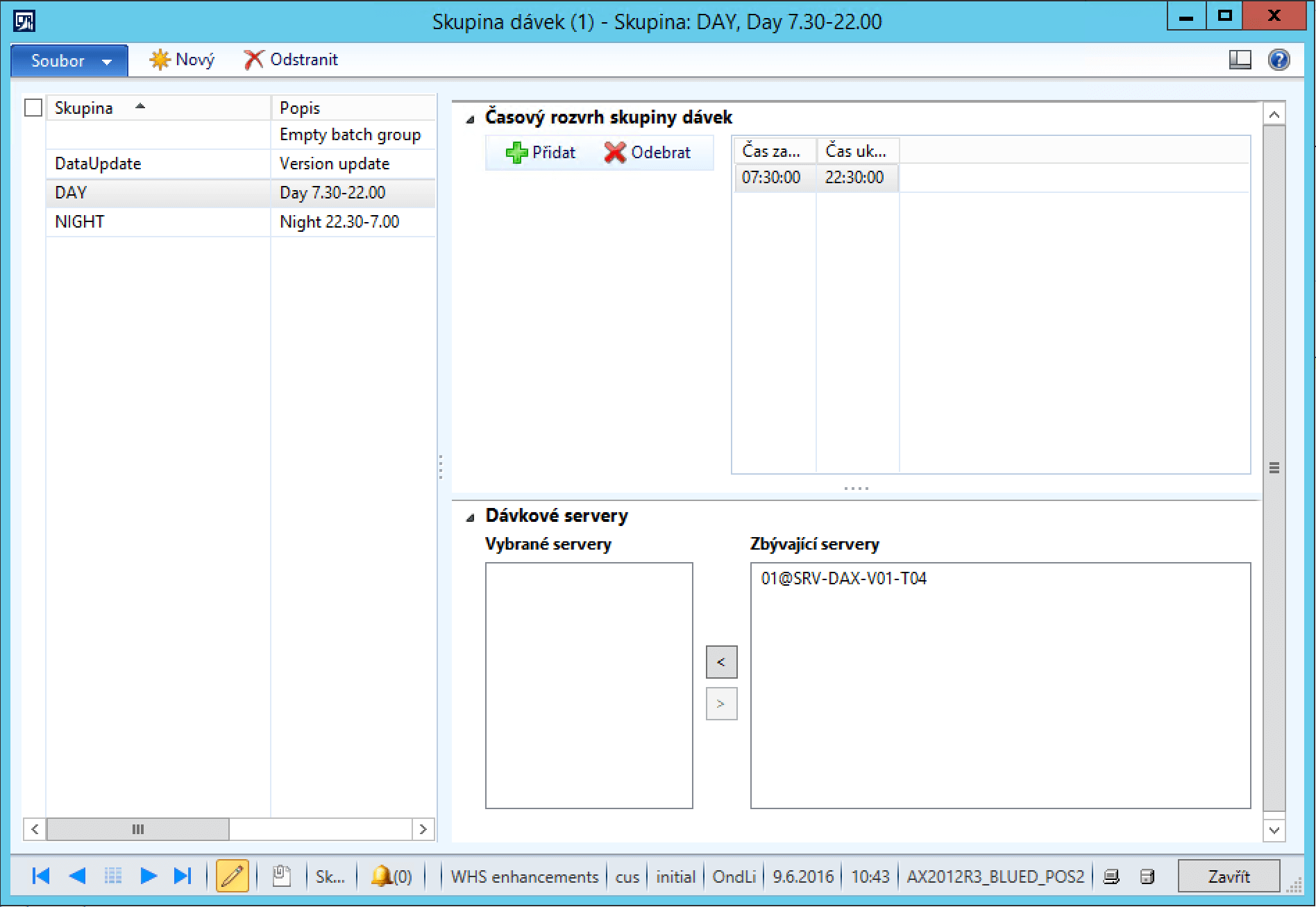
With this enhancement, one AOS suffices and conflicts are prevented.
Back to “Post statement.” The customer runs AX Retail. During the day, POS records sales. In the evening, tills close and data sync to AX. A statement is created and must be posted. The posting job is scheduled at night. Initially there is one Batch task in group NIGHT. When processing starts, new Batch tasks appear.
Some batches split work into smaller chunks processed in parallel as dynamic Batch tasks, sometimes with dependencies and a final cleanup task. The pitfall: dynamically created tasks may not inherit the parent’s batch group; behavior depends on implementation. If they get a group whose processing is paused, they never run and the job remains “Executing.”
The screenshot shows the last three tasks with a blank-named group. If that group is paused, statement posting never finishes.
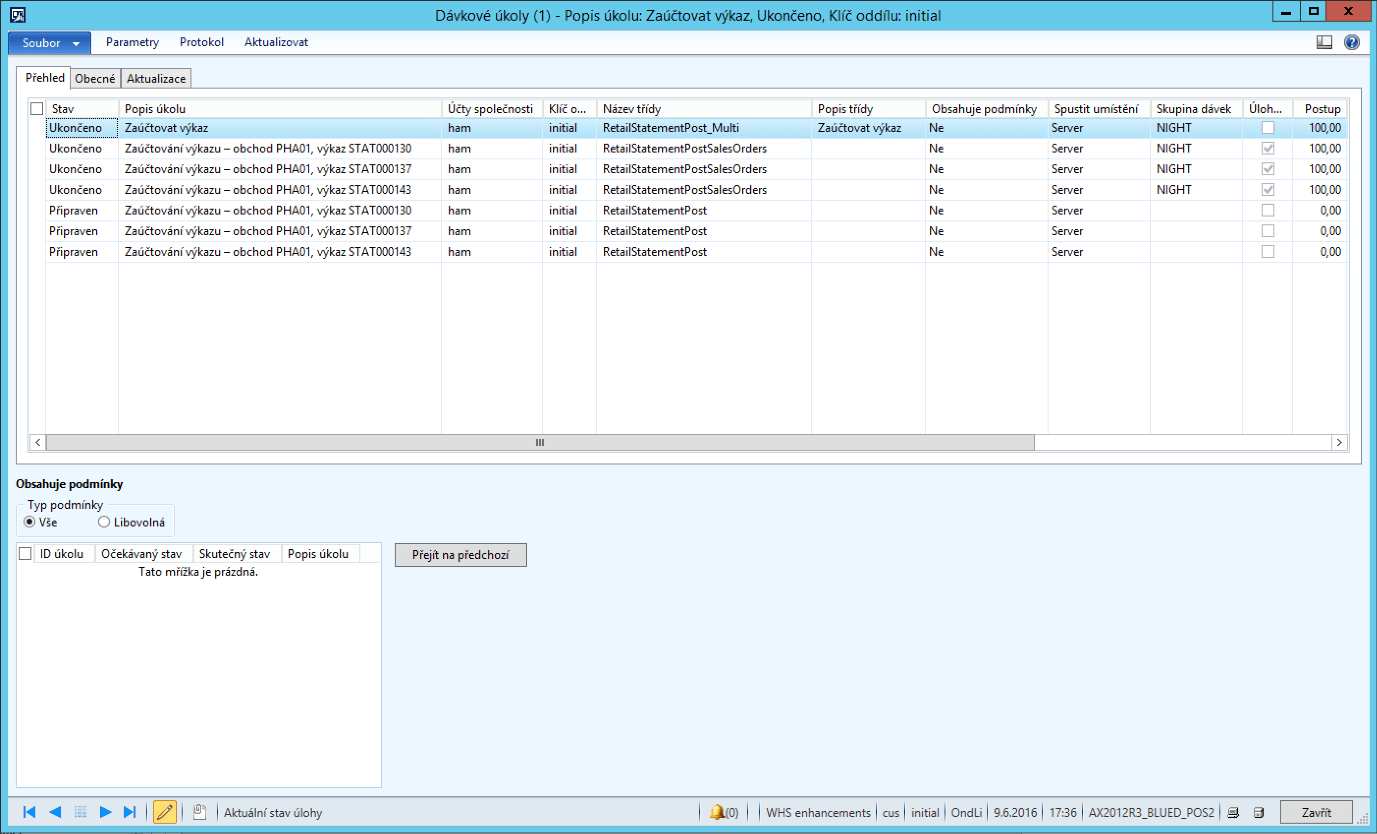
Commonly, dynamic tasks inherit the parent group or get blank. Since you cannot always control that logic, it is wise to never restrict processing of the blank group. Another reason: ad-hoc user-run one-off batches often use the blank group as users forget to set one.
Night batches often gate next day’s operations—e.g., master planning or jobs preparing picking workloads.
They are complex and failure-prone. They also run long, leaving little time for morning fixes. Rapid detection and reaction are critical.
Standard AX offers alerts when:
Admins can view alerts in AX or have them emailed.
Useful, but insufficient. No alert fires if a batch never starts or runs unusually long, often due to contention with another heavy job.
AX is often part of a wider landscape—CRM, e-shop, POS, etc. Centralized monitoring is preferable and AX alerts become ad-hoc. Integrate batch monitoring into the central system.
Blue Dynamic uses Check MK for batch monitoring. Our scripts track critical jobs—whether they started on time, progress, and whether they will finish by the deadline—and send SMS to on-call support on issues. We are generalizing this with parameters editable directly in AX.

Our Batch Jobs Manager for Dynamics AX is available as an addon for Dynamics AX in the Addons and apps marketplace for Dynamics AX — Addons.Blue.

Ondřej Liberda works as a Dynamics AX developer/architect at Blue Dynamic and has experience managing batch-deployment pipelines.
How to ensure peaceful sleep with batch jobs in AX 2012
/ Laten we praten — of u nu al weet wat u nodig hebt of gewoon de mogelijkheden wilt verkennen.

B/ue Dynamic NL
Lange Viestraat 2 B, 3511 BK Utrecht
Netherlands
Blue Dynamic, B.V.
KVK: 83303308
BTW: NL862820972B01
B/ue Dynamic CZ
Prazska 239, 250 66 Praag
Tsjechische Republiek
Blue Dynamic, s.r.o.
ICO: 02339234
DIC: CZ02339234